I got two first impressions of Notion AI agents:
- First: The tool centers my work instead of forcing me to adapt to it. I’m tired of learning new workflows, and Notion AI feels like the opposite.
- Second: This update appears to prioritize user retention over upsells. It’s less “pay more for AI” and more “stay longer because everything works together.”
Also, I love how this update speaks directly to a modern pain point. Custom AI agents sound great in theory, but in practice they become another system you’re responsible for. It takes time to set up, requires ongoing tweaks, and needs regular attention.
Most people don’t have the bandwidth, or the desire, to take on that kind of foundational work. And it seems Notion understands that.
But does it actually deliver?
To find out, I tested Notion AI agents to see whether they’re worth your attention. Here’s an overview:
What Are Notion AI Agents?
Notion AI agents are built-in, autonomous AI teammates embedded directly into the Notion platform. Like any AI agent, they can execute tasks, manage workflows, and organize information at scale. But they do it smarter:
- They understand the context of your pages, databases, tools, and tasks.
- They can trigger actions automatically based on rules or commands.
- They continuously interact with your content to improve their memory and accuracy over time.
In my view, their native integration with your workspace is what makes them powerful. You don’t have to set up API connections or permissions, as you would with an AI agent built using n8n.
How Do They Work?
If you’re on a business plan, a good place to start is with Connectors. Authorize the data sources your agent will use, which you can find under Settings > AI Connectors. Then create personalized structures to fit your workflow.
If you’re on a trial plan (free or plus), begin with the instructions, then look for the circular agent icon in the bottom-right corner of your workspace, or open the Notion AI tab in the left sidebar.
Once set up, you give your AI agent a task, instruction, trigger, or rule (for example, “create a database” or “send me a digest of weekly updates every Friday”).
The Agent combines Notion’s AI with the context from your specific tasks to carry out the action.
Check out this great use case from Notion. It took a handwritten note image, extracted and converted the text into a formatted Notion page. Exactly as the prompt asked.
Finally, you can refine its behavior with follow-up instructions or by adjusting its core rules. Here is an example of these instructions:
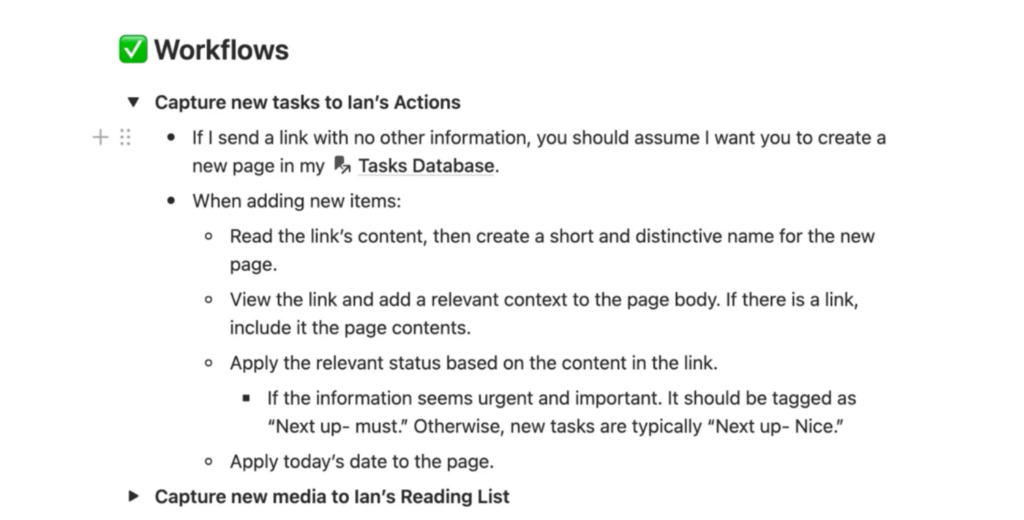
Over time, it picks up on your guidance and works better and better.
Pricing
Notion offers four plans, and each one has different limits for what your AI agents can do:
- Free & Plus plans
Free and Plus ($10/user/month) include a one-time trial of AI agents. This gives your workspace 20 total AI responses. However, you won’t have access to enterprise search or be able to connect to third-party apps. Once your trial responses are used up, the AI agent feature will be locked. - Business plan
At $20/user/month, the Business plan includes unlimited AI use, cross-app connectors, and personalization. - Enterprise plan
Everything in Business, plus advanced security, a dedicated success manager, and custom contracts. Pricing is tailored to your organization’s size and needs.
Key Features and Capabilities
Now, let’s dive into the features that make these AI agents useful:
1. Database/ page creation, querying, and editing
Notion databases are collections of pages that you can now generate from a single AI prompt. Simply explain what you require, and it will automatically generate a fully-structured database.
But I wondered: Do I have to give a detailed description? Wouldn’t that take as long as building it myself?
To test this, I gave Notion AI a simple, minimal prompt: “Create a simple database for tracking an outreach campaign.”
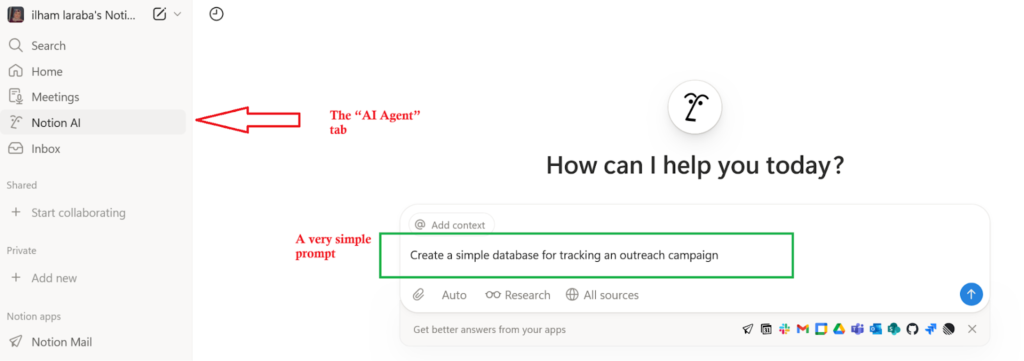
And just like that, it instantly built a complete and functional system with all the essential elements: contacts, dates, status, email, and notes.
The best part is that I didn’t have to spell it all out. Notion AI understood the objective and delivered exactly what I required in seconds. Here’s the database it created from the previous simple prompt:
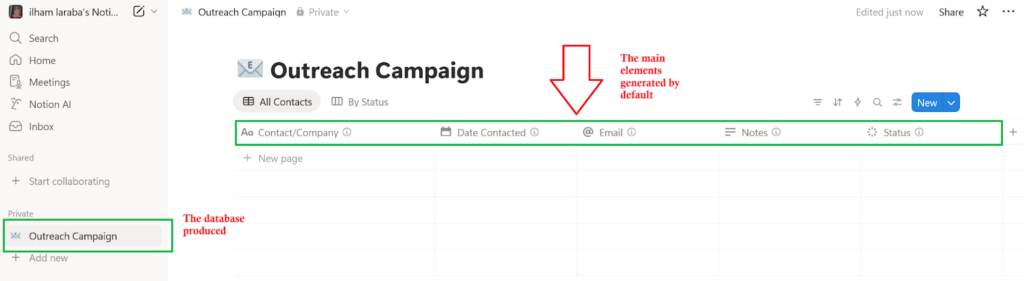
The same natural-language control works for modifying any database. Ask to “add a priority column” or “group by status and show a timeline,” and the Notion AI applies it immediately.
And it doesn’t stop at databases. The approach works across pages, whether you’re drafting from scratch, rewriting for clarity, summarizing long content, or restructuring messy notes into something clean and usable.
2. Autofill and formula generation
Beyond building and updating databases from a single prompt, Notion AI handles ongoing maintenance and adds smart logic through Auto-fill and AI-generated formulas.
You can define rules that automatically populate properties, like assigning categories or tagging keywords, so you never have to do repetitive work.
Setting it up is a one-click process. Click on the column header, select “Set up autofill,” and define your rules.
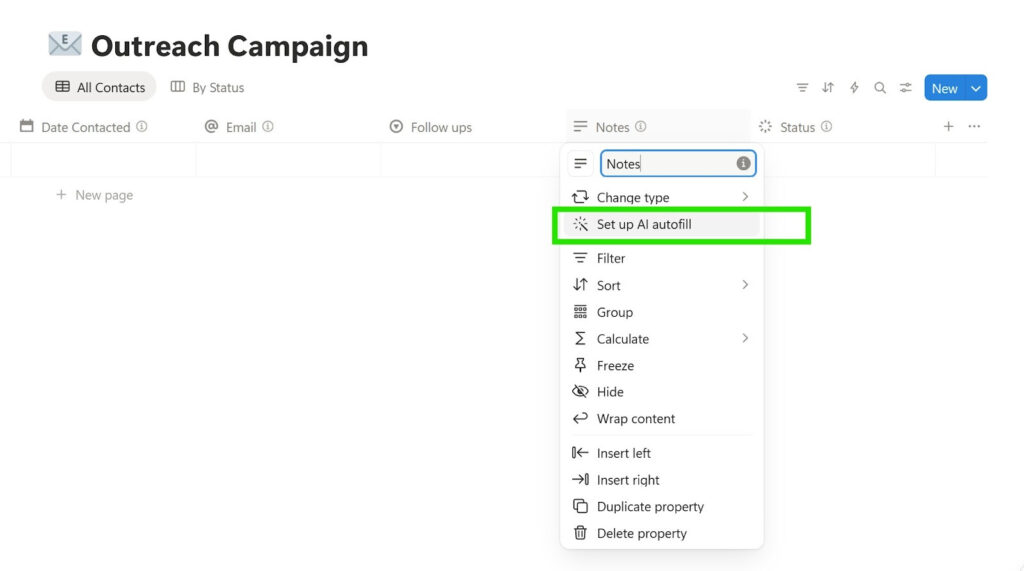
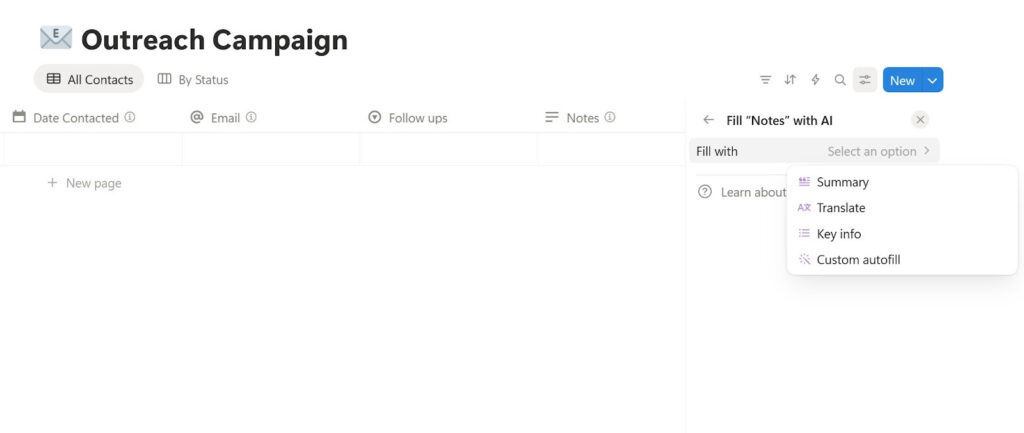
Once configured, the database automatically fills in information, saving you time and ensuring consistency.
For more advanced logic, AI Formula generation elevates your database’s automation. Without it, you’d need to manually write complex formulas in Notion’s syntax, like:
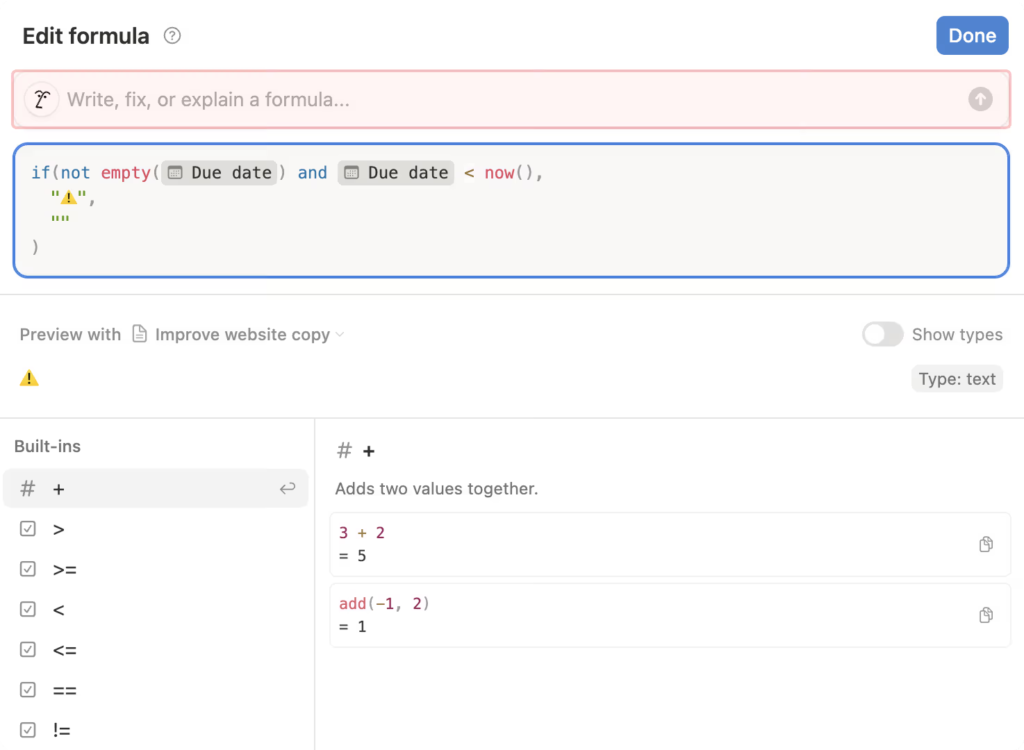
Now, you can skip the technical learning curve and describe what you want in plain English. For example:
“Create a Status formula: if the Due Date is past, mark it ‘Overdue.’ If it’s within 3 days, mark it ‘Due Soon.’ Otherwise, mark it ‘Planned.’”
This makes it faster and more intuitive to build logic without memorizing syntax.
3. Enterprise Search across workspace, the web, and connected apps
Instead of bouncing between a dozen open tabs, you can search once in Notion.
It scans your entire workspace (pages, databases, comments, and documents) and pulls in results from the tools you use, such as Google Drive, Slack, Jira, or GitHub (depending on what your team has connected). Check out this Notion video to see it in action.
What impressed me is that it doesn’t stop at finding information. Notion AI agents can also compare numbers across your databases, run the right queries for you, and turn everything into clean reports, tables, or charts.
And when the answer isn’t inside your workspace, it goes a step further. It scans the web, cross-checking sources, and gives you a concise, brief you can trust.
4. AI Meeting Notes for transcription and summaries
Notion AI Meeting Notes is a built-in feature that listens to live meetings on platforms like Zoom or Google Meet via the desktop app.
As the meeting happens, it automatically generates a transcript, extracts key points, and organizes decisions and next steps into clear action items. Everything is saved directly into your Notion workspace, keeping them connected to relevant projects and tasks. Here’s a quick video from Notion that shows how it works.
The tool works with participant consent and integrates into your existing workflow, making it easier to capture, search, and act on meeting insights.
Pros and Cons
Nothing’s perfect, and every tool has its ups and downs. Below is a quick look at what’s great, and what could slow you down:
Pros
All-in-one automation: Enterprise teams can create databases, draft content, run searches, manage meetings, and execute processes in one place using simple prompts.
Customizable agents: Each agent can be equipped with your organization’s context and team-specific instructions.
Planned automation and templates: Scheduled or trigger-based workflows, plus a template library for quicker deployment.
Advanced scale and memory: Agents run in the background and can update their memory, improving autonomy and accuracy.
Cons
Performance: It can slow down with large databases or intricate setups.
Occasional inaccuracies: Notion AI can sometimes hallucinate or provide incorrect information, so outputs should be verified, especially in critical workflows.
Limited third-party integration: Third-party app connectors are exclusive to paid Business and Enterprise plans. Current integrations are primarily for retrieving information. Notion AI can find a Jira ticket, for example, but it cannot update its status, assign it, or draft responses.
Cost: Positioned at a premium price point. It can be expensive, especially for smaller teams.
Learning investment: Each AI agent and connected app has its best practices, so mastering the tool may require time spent on tutorials and guides.
About ME
Hey, I’m Ilham. I build content systems for B2B & SaaS brands that want measurable growth.
With four years specializing in SaaS and B2B content, I’ve moved from writing 120+ agency-side SEO articles to developing complete content strategies. I’ve created product pages, email sequences, and LinkedIn campaigns that convert.
Let’s connect and collaborate.
Find me on LinkedIn for industry insights, or reach out directly via [[email protected]] to discuss your B2B content strategy.